
 Posts
Posts



Did you just take advantage of the free 50GB Android account. Did you already have a box account from the iOS or Sony Ericsson promo? Or do you just already have a Box account?
I’ve got to admit, the web interface on the desktop is pretty clunky. There’s no way to drop and drag folders into your account, so if you want to do that you have to recreate folders and sub-folders on your Box account and copy files in at a file level – a slow, laborious, and time-consuming exercise. Below, I’ll outline the procedures for setting up your Box account as a network drive with Windows 7,8 or a Mac. I assume that you can do it with Linux as well  Instructions and screenshots after the jump…
Instructions and screenshots after the jump…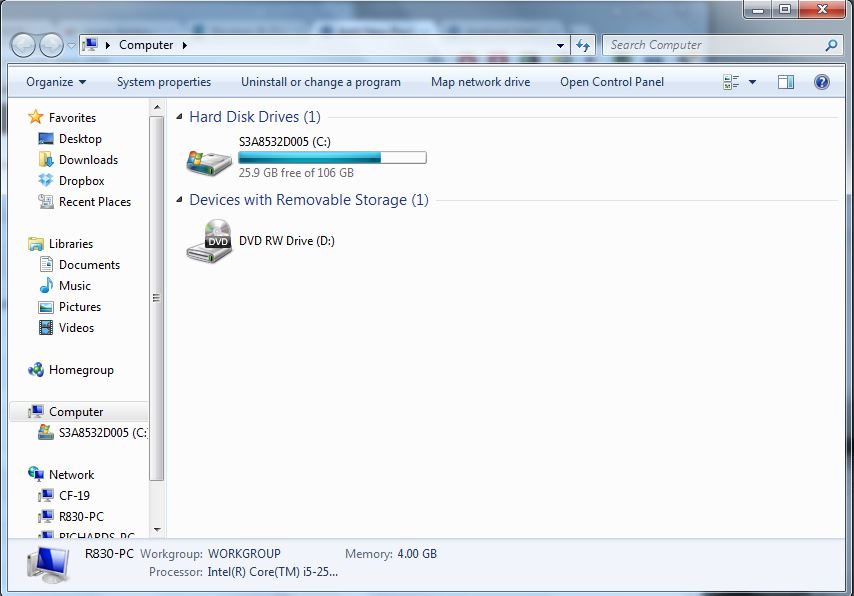 Open up Windows Explorer and click on “Map Network Drive”
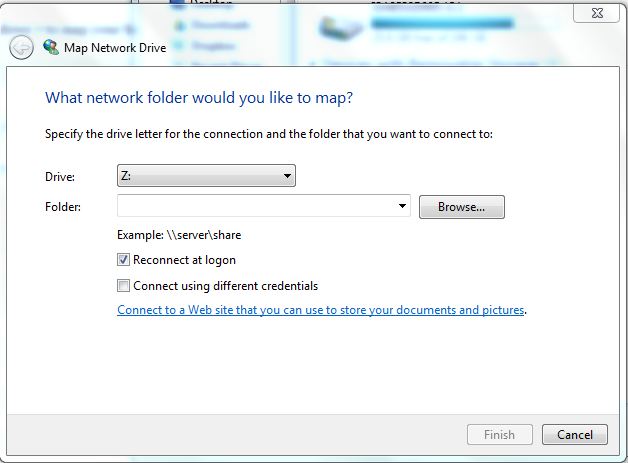 Click on “Connect to a Web site that you can use to store your documents and pictures”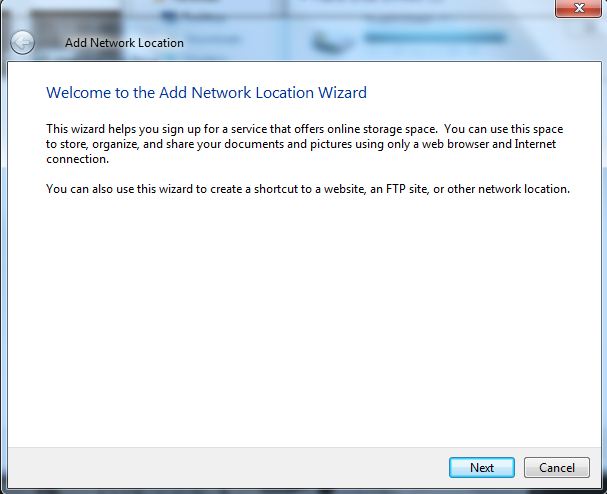
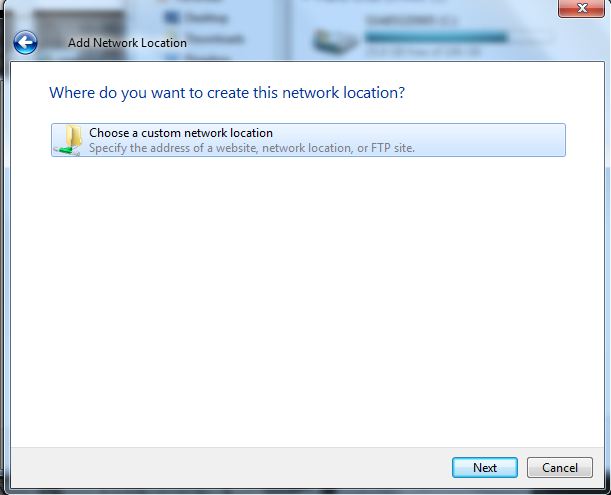

Enter “https://dav.box.com/dav.”
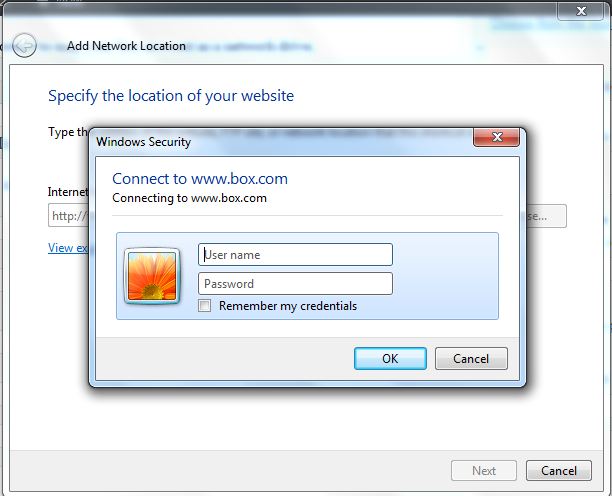 Enter your Box.com login details.
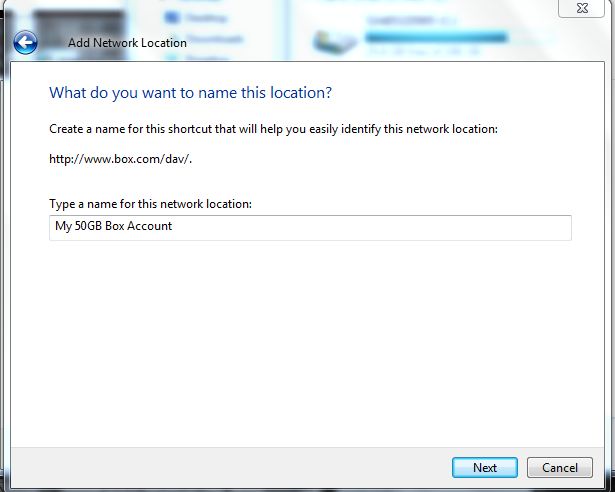 Name your Network Location
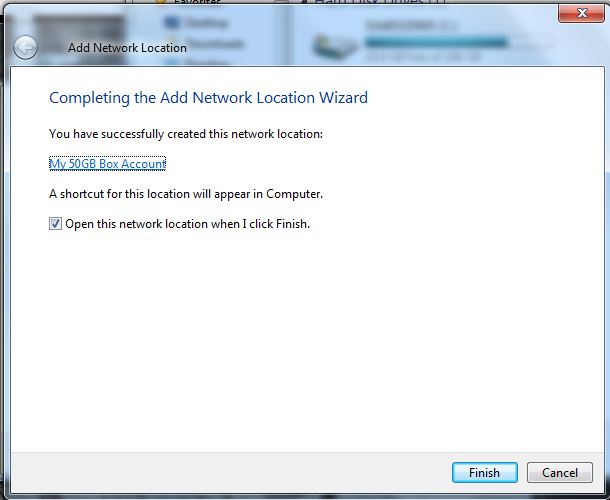 Click Finish
 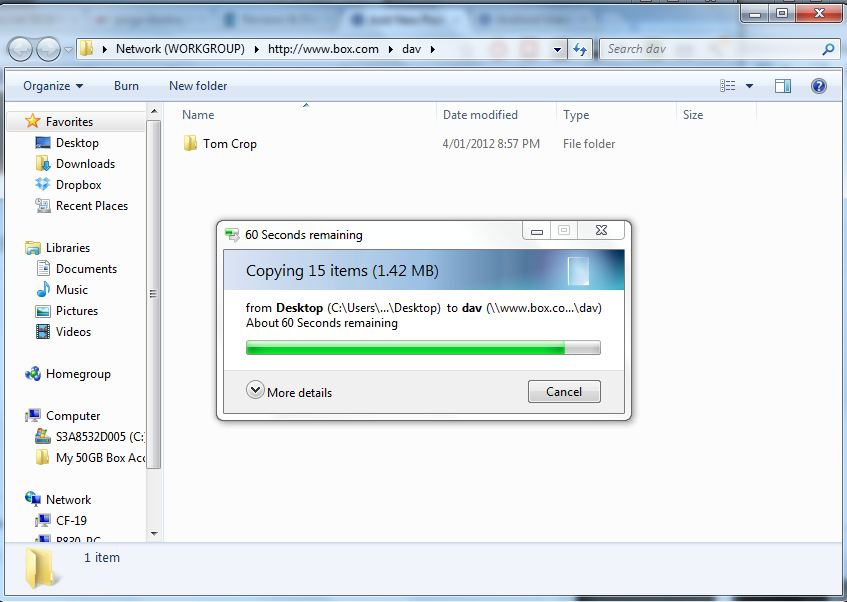 Voila ! Your Box account now appears in your Explorer Windows under Computer ( see LHS ).
I don’t have a Mac so can’t give you screen shots but the procedure is:
- Open Finder
- Click on Go->Connect to Server
- Enter https://www.box.net/dav/
- Click on Connect
- Provide your Box.com login details
- Finished
You can now drag-and-drop files or folders directly into your Box account without having to worry about the file structure. By recreating this network drive on multiple computers, you can share the account, and therefore files, between them easily without having to go through the web interface. Note however that the copy process is pretty slow. It just took me around 6 minutes to copy the 1.42MB of files shown above.
Hope this helps someone out there. Enjoy !

No comments:
Post a Comment